Round Image Corners Online Adjust the Radius & Download a PNG
Easily soften photo corners or create circular profile pictures. Adjust corner curvature, customize border colors, and download transparent PNGs in seconds.
Drop your photo here
or browse files · JPEG, PNG, WebP up to 20MB
Custom Radius
Adjust corner radius from subtle to fully round
Backdrop Color
Pick background border colors or transparent backdrop
HD Exports
Export in high resolution PNG, JPEG, or WebP
Private
All operations occur on your device locally
720×720 pixels · PNG · ~Calculating...
Rounded corners at 25% radius
Table of Contents
Show Hide
Table of Contents
How to Round Photo Corners in 3 Easy Steps
Upload your photo
Select any picture from your device — works with JPEG, PNG, and WebP formats.
Adjust the corner radius
Move the corner radius slider. A higher value makes larger curves.
Preview, then download
Preview against light or dark backdrops, then download your high-resolution PNG instantly.
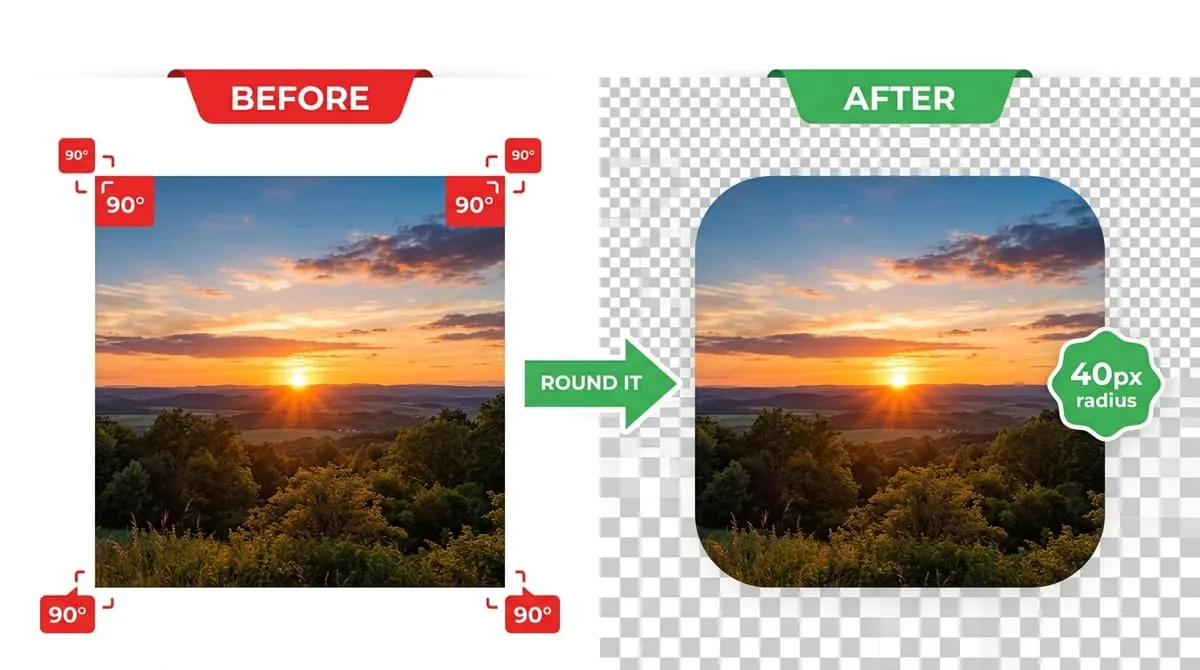
Rounded corners replace sharp corners with curves. Use them for photo cards, slides, or website images. The corner radius controls how large each curve is.
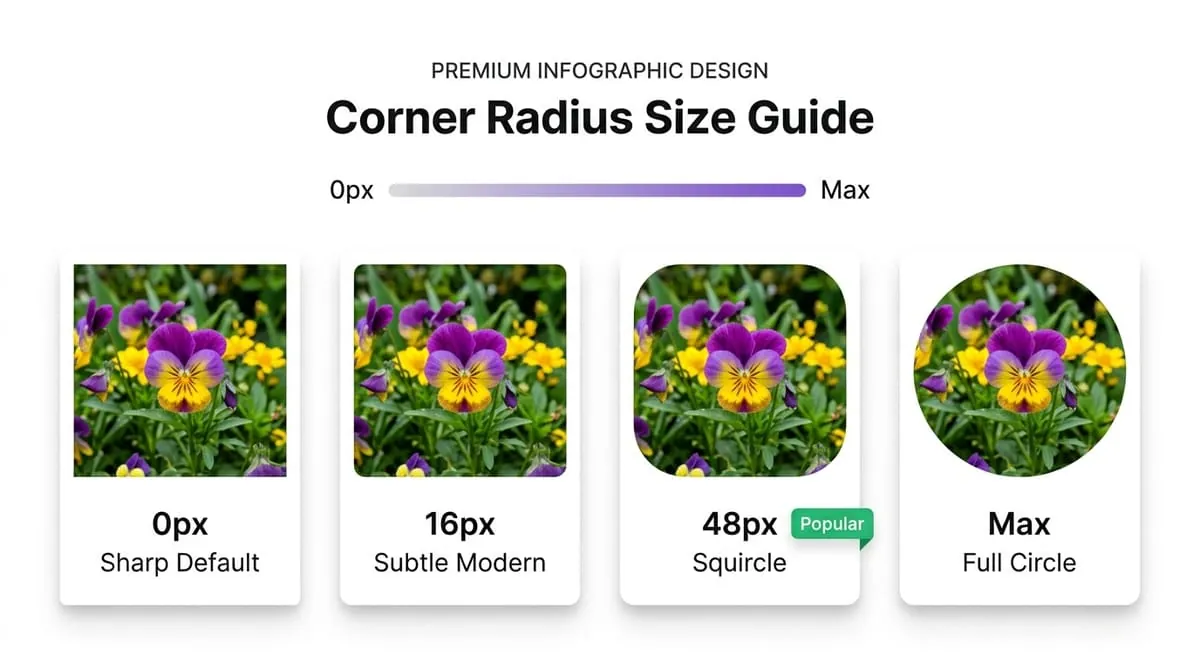
Choose a shape that fits your design
Use a small curve for a photo card. Use a larger curve for a softer shape. Check the result at the size people will see.
Live Radius Slider Preview
Drag the slider below to test different corner radiuses on the live sample card!
There's no single correct radius — it depends on what the image is for and how large it will be displayed. As a general guide:
| Radius | Effect | Common Use |
|---|---|---|
| Small (5–15%) | Subtle soften, corners barely visible | Product photos, screenshots, thumbnails |
| Medium (20–35%) | Clearly rounded, still a rectangle | Cards, website images, app banners |
| Large (40–49%) | Strongly curved, near-oval on rectangles | Feature images, highlighted content |
| Maximum (50%) | Full circle on a square photo, full pill on a rectangle | Profile pictures, avatars, icons |
If you're rounding a photo for a profile picture specifically, set the radius to maximum on a square image — that produces the same full circle that WhatsApp, Instagram, LinkedIn, Discord, and most other platforms already apply automatically to their profile photos, so you can preview and adjust it yourself before uploading rather than leaving it to the platform's own crop.
Profile pictures are the most common reason people reach for a maximum-radius circle, but a smaller radius shows up constantly in places that are easy to miss:
App icons on phone home screens
App icons use a consistent, moderate radius that matches the operating system's overall icon shape.
Product photos on shopping sites
Product photos often carry a small radius so thumbnails feel like part of a cohesive grid rather than a stack of sharp-edged rectangles.
Website cards and feature boxes
The boxes that hold a blog thumbnail, a team member's photo, or a feature image commonly use a medium radius to match the rounded corners of the card itself, so the photo doesn't look like it's fighting the container around it.
Presentation slides and graphics
Presentation slides benefit from a small-to-medium radius on photos, which tends to look calmer and more polished on screen than a sharp rectangle.
Matching the radius to where the image will actually appear is more important than picking a number that simply "looks nice" in isolation — an 8px radius that looks barely-there on a large banner can look identical to a much larger radius once the same image is shrunk down to a 40px thumbnail.
Image Quality Simulator
Test compression quality and file size retention live!
Quality Simulator
Drag the slider to see the effect of quality settings
Ultra HD Quality
Crisp, studio-quality detail
Tip: For WhatsApp, 80–95% quality gives the best balance. WhatsApp re-compresses images anyway, so ultra-high quality (100%) may not be noticeable.
PNG vs JPEG vs WebP Comparison
Compare formats, transparency, and compression trade-offs.
Format Comparison
Click a format to explore its properties
PNG Format
Logos, graphics, sharp text
Avg Size
~200–600 KB
Transparency
Pros
Cons
Get the Perfect DP
Expert advice to make your WhatsApp profile picture look stunning every time.
Square Photo vs. Rectangular Photo: What Changes
Square Photo
A square photo rounded to maximum radius becomes a perfect circle — this is the standard look for a profile picture or avatar.
Rectangular Photo
A rectangular photo rounded to maximum radius becomes a pill shape, with fully curved short edges and straighter long edges, rather than a circle. This is common for banner-style graphics, not profile pictures.
Rounded Corners vs. Circle Frame — Which One Do You Need?
Rounded corners change the edges of a square or rectangle. A circle frame adds a ring around a round photo. Choose the tool that matches your design.
Applying a large radius to a rectangular photo expecting a circle, when what actually results is a pill shape — crop to square first if a circle is the goal.
Exporting as JPG when transparency is needed — JPG doesn't support transparent areas, so the rounded corners will fill with a solid color (often white or black) instead of showing whatever background you place the image on.
Choosing a radius that looks right at full size but disappears or looks inconsistent once the image is displayed much smaller, such as in a chat thumbnail or app icon grid.
Rounding a photo that still has a visible straight edge or border baked into the original image — the rounding clips the photo's shape, but it won't remove a rectangular border that was part of the photo itself.
Choose your photo. Set the corner radius. Pick a background and download the result.
Our browser-based tool works directly on your phone or desktop. Everything is processed instantly using client-side canvas without downloading any apps or creating an account.
Yes. Choose a transparent background and save as PNG. JPG cannot keep transparent areas.
To create a circular profile picture for WhatsApp, Instagram, or Discord, upload a square photo and set the radius to maximum (50%).
Yes, the tool is free and does not add watermarks. Choose from the resolution options shown in the editor; the browser’s memory also limits how large an image it can process.
No. All processing happens 100% locally in your browser. Your images never leave your device.
Explore Related Profile Picture Tools
Need a different shape, ratio, or background effect? Try these free online image tools.
WhatsApp DP Maker
Resize full photo to fit or fill WhatsApp DP format without cropping.
WhatsApp Status Resizer
This tool exports a 1080 × 1920 pixel image at a 9:16 ratio. Check the crop in WhatsApp before posting.
PFP Maker & Circle Frame
Create aesthetic profile pictures with 79+ custom border rings, neon glows, and gradient frames.
Crop Image Tool
Crop photo to exact pixel dimensions or preset ratios (1:1, 4:5, 16:9).
Ready to soften your photo's edges?
Choose a photo and adjust its corners. No account or watermark.
Specialist in high-performance frontend architecture and client-side canvas rendering. Researches lossless compression, zero-upload privacy workflows, and digital media standards.