
Start by finding where the detail is lost
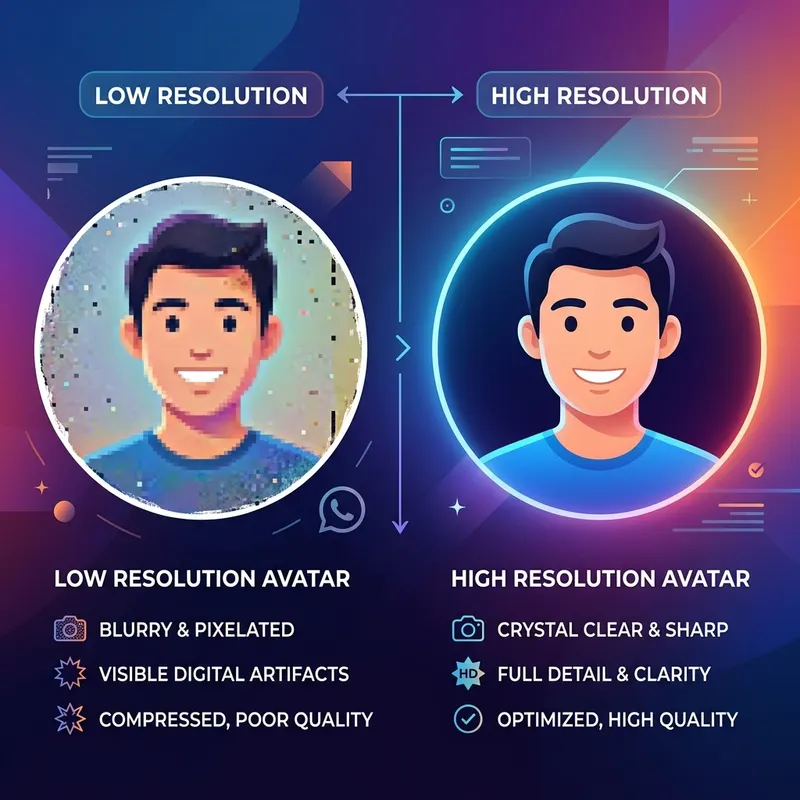
Pixels are the small dots that form a digital image. A photo can look blocky when it has too few pixels for its display size. It can look soft from poor focus, motion, resizing, or compression.
Check the original file
Open the original photo at its normal size. If it is already blurry, an export setting cannot restore the missing detail. Try the camera file instead of a screenshot or a copy saved from a chat.
Avoid enlarging a small crop
A close crop keeps fewer pixels. Enlarging those pixels does not create real detail. Try a wider crop or choose a photo taken closer to the subject. Use padding if you need to keep the full scene.
Choose a suitable format
JPG often makes compact photo files. It uses lossy compression, which can change fine detail. PNG is useful for text and logos. Converting a blurry JPG to PNG does not repair it.
Compare three versions
Compare the original, the downloaded edit, and the uploaded profile photo. If the edit is soft, review the crop and output size. If only the upload changes, the app may have resized or compressed it. No export size guarantees that an app will keep the file unchanged.
Try a careful export
Use the DP converter with the original photo. Check the circle, then try a 720- or 1080-pixel export. Compare the results at the same display size. These are tool options, not official quality requirements. Read the blur background guide to keep more of your photo.