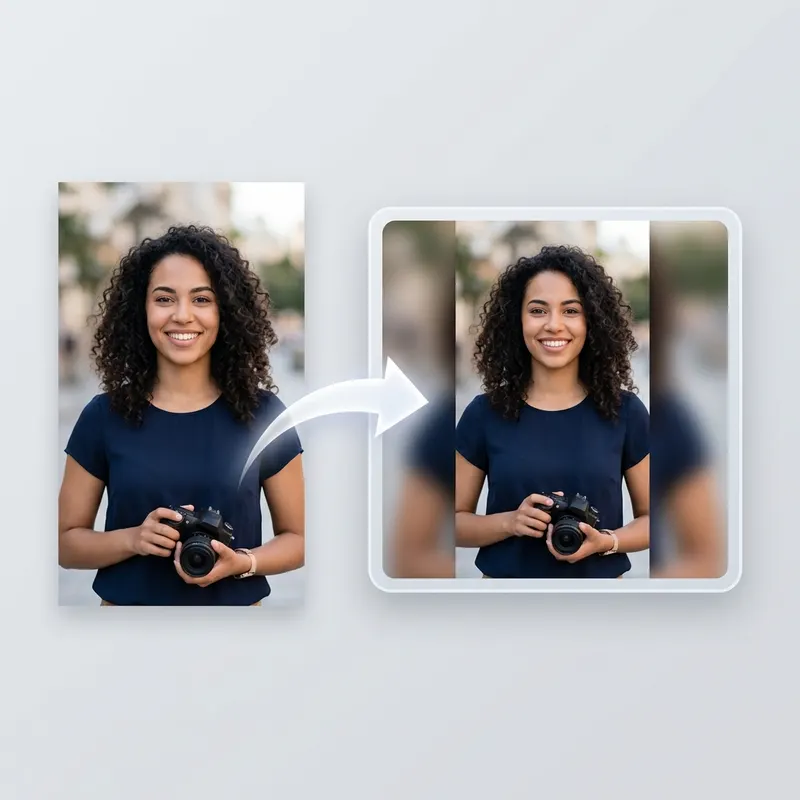
Keep the photo and fill the extra space
A blurred background uses a soft copy of your photo behind the sharp original. It fills empty space without stretching the main picture. This is useful for a wide group photo or a tall portrait.
1. Choose your original photo
Open the WhatsApp DP converter. Select a JPEG, PNG, or WebP file up to 20 MB. The photo is processed in your browser. You do not need an account.
2. Fit the whole photo
The editor starts in Blur mode. Select Fit full photo in circle after moving or zooming. This keeps the photo’s corners inside the circle preview. Moving it again can hide an edge, so check the preview once more.
3. Adjust the background
Change Blur Amount to make the background softer. Use Background Tint to change its color. Choose White or Black for a plain background. Keep the foreground large enough to see faces clearly.
4. Download the square image
Choose 500, 640, 720, or 1080 pixels square. The default is 720. These are tool presets, not official WhatsApp requirements. Choose JPG, PNG, or WebP. JPG or PNG is a practical starting point for a WhatsApp upload.
5. Check the upload
The circle switch changes the preview, not the shape of the saved file. Downloads stay square. Open WhatsApp and select the saved image. Keep its full square in the crop frame. If it looks soft, read the blurry DP guide.