Crop Image Online Square, Portrait & Custom Ratios
Choose an aspect ratio, adjust the framing, and download your cropped photo. Use Fill to trim edges or Fit Inside to keep the whole image with padding.
Drop your photo here
or browse files · JPEG, PNG, WebP up to 20MB
Square & Custom Ratios
Square, portrait, landscape, or custom ratios
Crop by Resizing
Set fit or fill style and output width
Blur & Color Backdrop
Add modern blurred background or solid color borders
Instant
No waiting — upload and download
720×720 pixels · PNG · ~Calculating...
Cropped to 1:1 ratio (Fill)
Table of Contents
Show Hide
Table of Contents
How to crop a photo in four steps
Upload your photo
Choose a JPG, PNG, or WebP image up to 20 MB.
Choose a preset or freeform ratio
Choose a shape, such as a square. Use freeform to set your own width and height.
Adjust the crop boundary
Move the crop box over the part you want to keep. The area outside the box will be removed.
Preview, then download
Check the crop. Choose the output size and format, then download your image.
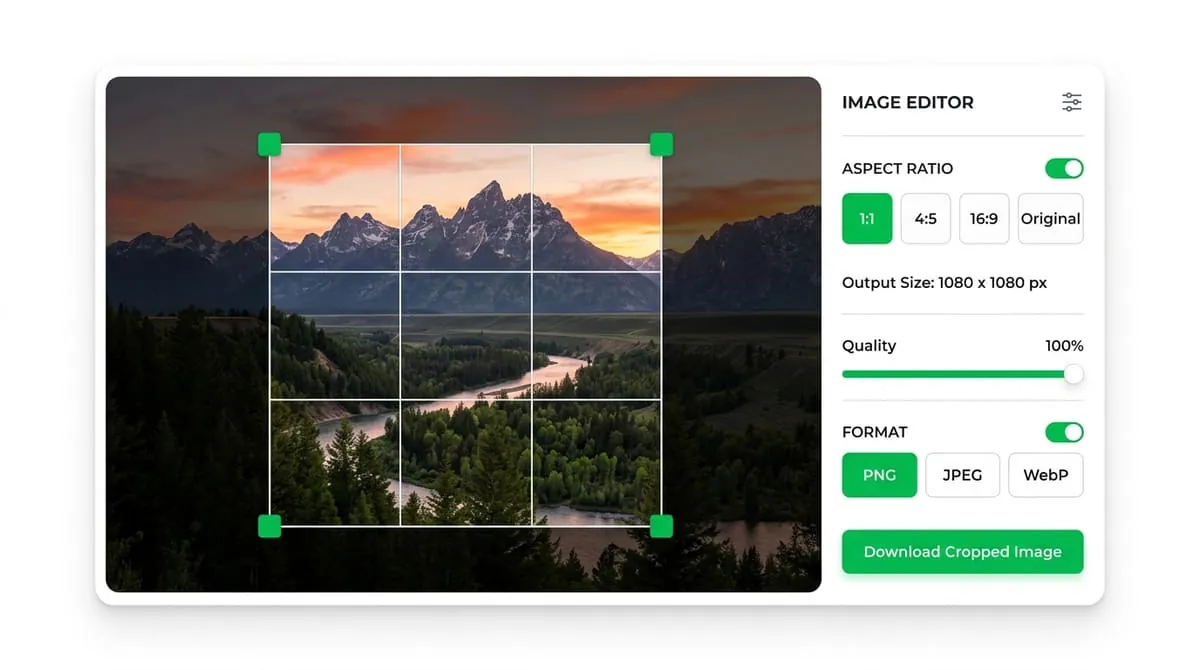
Cropping cuts away the edges of a photo. Use it to remove clutter or focus on one person. Resizing changes the number of pixels instead. This tool can do both.
When should you crop a photo?
Crop a screenshot, remove an empty border, or make a wide photo square. To keep the whole scene, use the DP converter with padding instead.
Live Aspect Ratio Visualizer
Click any ratio preset below to see the crop dimensions and framing box update instantly!
Freeform Crop
Freeform lets you choose any width and height. Use it when the final shape does not need a fixed ratio.
Fixed Ratio Crop
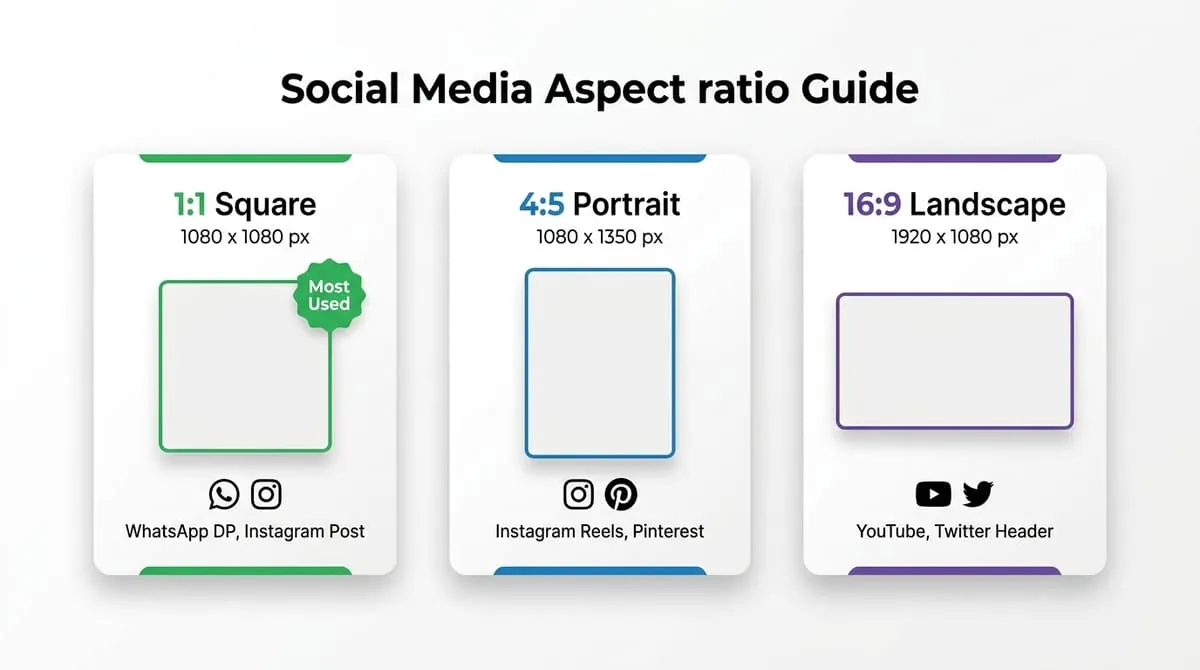
An aspect ratio compares width with height. A 1:1 ratio is square. A 16:9 ratio is wide. A fixed ratio keeps that shape as you resize the crop box.
| Ratio | Shape | Typical Use |
|---|---|---|
| 1:1 | Square | Profile pictures — WhatsApp, Instagram, Facebook, LinkedIn |
| 4:5 | Tall portrait | Instagram feed posts |
| 16:9 | Widescreen | YouTube thumbnails, video covers, presentation slides |
| 9:16 | Tall vertical | Stories and Reels on Instagram, WhatsApp Status, TikTok |
| 3:2 | Standard photo | Printed photos, general photography |
| 2:1 | Wide banner | Website headers, social media cover images |
A square is a useful starting point for a profile photo. A circular preview hides its corners. Keep faces and text away from those corners.
The most common cropping mistake isn't choosing the wrong ratio — it's not leaving enough margin around the subject. A few habits help:
Start wider than you need
Start with a slightly wider selection than you think you need, then narrow it. It's easier to trim a bit more than to realize afterward that something important got cut off.
Leave margin for circular masks
If the photo will end up in a circular frame later (as with most chat app profile pictures), leave extra space around the subject during the crop — circular masks hide the corners of a square image, so a tight square crop can still lose content once displayed as a circle.
Center on key subject, not geometric center
For group photos or photos with text, keep the crop selection centered on the most important element, not the geometric center of the original photo.
Check expected ratio first
When cropping for a specific platform, check that platform's expected ratio first rather than guessing — cropping to the wrong ratio means the platform will crop it again on its own terms.
Image Quality Simulator
Test compression quality and file size retention live!
Quality Simulator
Drag the slider to see the effect of quality settings
Ultra HD Quality
Crisp, studio-quality detail
Tip: For WhatsApp, 80–95% quality gives the best balance. WhatsApp re-compresses images anyway, so ultra-high quality (100%) may not be noticeable.
PNG vs JPEG vs WebP
Compare formats, transparency, and compression trade-offs.
Format Comparison
Click a format to explore its properties
PNG Format
Logos, graphics, sharp text
Avg Size
~200–600 KB
Transparency
Pros
Cons
Get the Perfect DP
Expert advice to make your WhatsApp profile picture look stunning every time.
Does Cropping Reduce Image Quality?
A larger export cannot restore missing detail. The destination app may resize or compress your image.
Crop, resize, or add a border?
These three visual adjustments solve distinct problems:
Crop
Choose an online photo crop when your image contains more than you want and you need to cut away unwanted background or outer edges.
Resize
Resize when the composition is already ideal, but you need to change file dimensions or shrink file size for faster loading.
Frame
Add padding when you want a new shape without cutting away the photo. Add a frame when you want a border around it.
It's common to need more than one of these in sequence — crop first to get the right composition and ratio, then apply a frame style on top if the destination calls for it, such as a circular WhatsApp DP.
Cropping a photo for business or work accounts? Check out our professional WhatsApp DP ideas guide for expert framing advice. Need to fit a photo to 9:16 vertical for stories? Use our WhatsApp Status Resizer.
Choose your image. Set a ratio and move the crop box. Pick an output size and download. No account is needed.
The editor processes photos in your browser. It does not send your selected image to an image-processing server.
Yes! Our photo cropper online is fully responsive and touch-friendly on iOS Safari, Android Chrome, tablets, and desktop browsers.
Use a 1:1 square ratio. Most platforms like WhatsApp, Instagram, LinkedIn, and Discord display avatars inside circular frames that require a square starting point.
A larger export cannot restore missing detail. The destination app may resize or compress your image.
Yes. You can complete a fast online photo crop straight from your browser without installing Photoshop, mobile apps, or browser extensions.
Explore Related Profile Picture Tools
Need a different shape, ratio, or background effect? Try these free online image tools.
WhatsApp DP Maker
Resize full photo to fit or fill WhatsApp DP format without cropping.
WhatsApp Status Resizer
This tool exports a 1080 × 1920 pixel image at a 9:16 ratio. Check the crop in WhatsApp before posting.
PFP Maker & Circle Frame
Create aesthetic profile pictures with 79+ custom border rings, neon glows, and gradient frames.
Rounded Corners Tool
Add elegant curved corners to photos with custom radius control.
Ready to crop your photo?
Choose a photo to begin. No account or watermark.
Specialist in high-performance frontend architecture and client-side canvas rendering. Researches lossless compression, zero-upload privacy workflows, and digital media standards.